Automations
12 Claude Code Automations for Business (No Code Needed)
The twelve jobs that run my four businesses while I'm doing something else, the pattern every one of them follows, and the Windows scheduling traps that cost me a day.

Contents
- What can I automate with Claude Code without coding?
- The 12 automations I actually run
- How does a written brief become a working automation?
- Why should every automation report what it checked?
- Can Claude Code run scheduled tasks on Windows?
- Does Claude Code need to stay open for automations to run?
- MCP servers worth connecting
- Where to start
The short answer
The Claude Code automations worth having follow one pattern: you write a plain brief of what should happen, Claude Code builds the job and tests it, and every run reports what it checked. On Windows, anything that must run reliably goes on Task Scheduler, because Claude Code's in-session schedules stop when the session closes and expire after seven days.
Most lists of Claude Code automation ideas are written by people who haven't run them for a month. They stop at "Claude can do X". They don't tell you what happens on the third Tuesday, when the PC was asleep at 6am, or the job "succeeded" without doing anything.
I've run my four small businesses with Harris, my AI operator, since 16 August 2026. Harris is Claude Code (Anthropic's AI that works with the files and tools on your computer) plus a vault of plain notes, on one Windows PC. I don't write code. I write briefs. Below are the twelve automations that actually run, the one pattern they all follow, and the Windows reality nobody puts in the demo.
If you're new to all of this, start with the guide to Claude Code for business owners, then come back.
What can I automate with Claude Code without coding?
More than you'd think, as long as you accept one pattern. Every automation I run goes through the same three stages:
The brief is the bit you do. It's a short document, not a prompt typed into a chat box. That's partly discipline and partly Windows: pasting long, multi-line prompts into the terminal on Windows can silently cut them short, so anything longer than a line or two gets saved as a file, and I tell Claude Code: "Read brief.md and follow its instructions."
The "no code" part is real in the sense that matters. Claude Code writes the scripts, the tests and the schedule. I read what it reports. I've never opened most of the code, and I don't need to.
The 12 automations I actually run
Each of these runs today, across a property services firm, a training company, a partnership and Harris itself. Details are generic on purpose.
| # | Automation | When | What it reports |
|---|---|---|---|
| 1 | Public-tender scan | 06:00 daily | New notices, scored for fit, written as rows |
| 2 | Inbox watch | Every 15 min in a session | Who needs a reply, and what it searched |
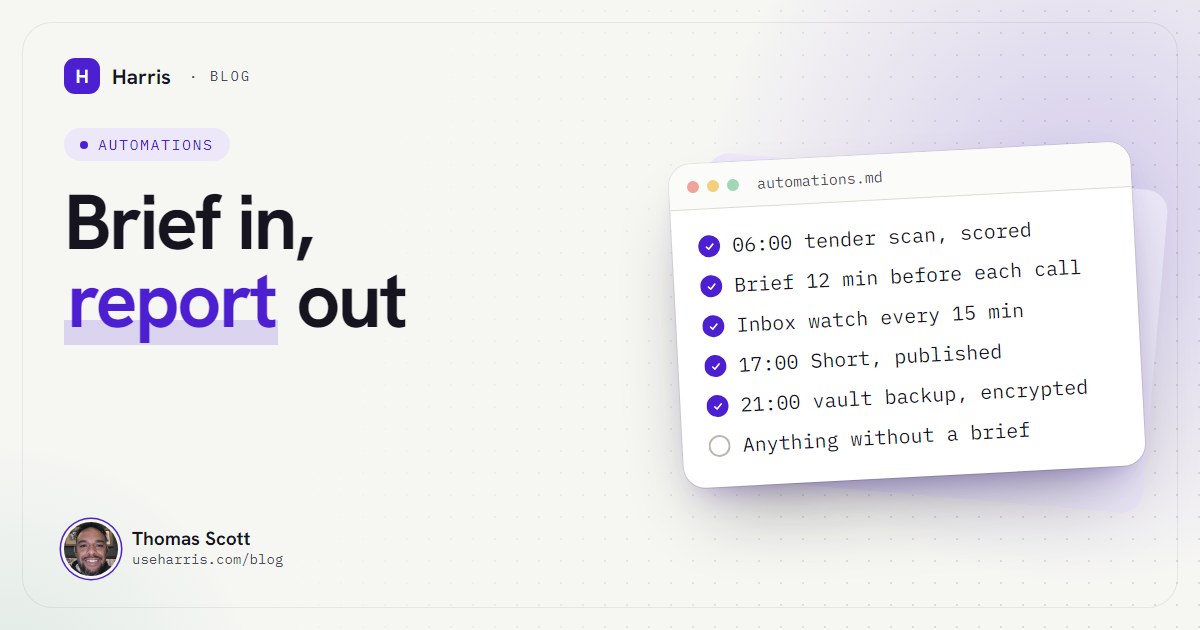
| 3 | Meeting reminder (no AI) | Every 5 min | A nudge 10 to 15 min before each call, and when a calendar stops answering |
| 4 | Pre-call brief | About 12 min before a call | Who, where it stands, who owes what, the one outcome to get |
| 5 | Recap filing | After calls with a notetaker | Decisions and action items filed into the client's note |
| 6 | Follow-ups due | Every session start | Overdue items, most overdue first, computed from last contact and cadence |
| 7 | Urgent email alert | Every 2 min | Only clients, money, contracts or deadlines; text only at night |
| 8 | Daily Short | 15:30, public at 17:00 | Uploaded privately, then the link to my phone |
| 9 | Clip channels | On their own schedule | Clips cut, titled and posted with no one pressing a button |
| 10 | Waitlist kit email | On sign-up | Kit sent, with a one-click unsubscribe that link scanners can't trigger |
| 11 | Weekly funnel report | Mondays, 08:00 | The week's funnel numbers, to my phone |
| 12 | Vault backup | 21:00 nightly | Encrypted copy off the PC; restore tested |
The ones I'd copy first, if you run a small business: 3, 6 and 12. A reminder that can't fail, an overdue list nobody has to maintain, and a backup you've actually restored from. None of them is glamorous. All three have saved me something.
The personal-assistant end of this list (2, 4, 5 and 6) is written up in detail in how I run Claude Code as an executive assistant. The ranking side, deciding which of four businesses gets the next hour, is in how I use an AI chief of staff across several ventures.
How does a written brief become a working automation?
The clearest example is the afternoon I handed Harris a spec for a set of clip channels. Brief handed over at 13:30 on Monday 12 October. First public post at 16:00:00, on schedule. By nightfall, three channels posting on their own, with 54 automated tests passing. By lunchtime the next day, 2,331 views from 12 clips. That's the "One Afternoon" build, and it's the reason I trust the pattern.
What made it work wasn't clever prompting. It was the brief. Mine follow the same shape:
# Goal Three channels posting on their own by tonight.# Done means First public post at 16:00. Tests pass. Runs with my PC idle.
# Never Publish anything that fails the review gate. Store a key in a note.
# Report What ran, what you checked, what failed, how you know.
The "Never" section is where your scars go. Mine include never publishing without the review gate passing: if a daily video script fails review, the job skips that day and messages me. It never publishes an unchecked script to "keep the streak going".
Why should every automation report what it checked?
Because "it ran" and "it worked" are different claims, and most automations only tell you the first.
Harris has a standing rule: it can't say something is fixed without saying what it verified the fix against. If that wasn't the live system where it broke, the words are "should fix it, pending live verification". It sounds pedantic. It's saved me from believing several things that weren't true.
Three habits make reports worth reading:
- Timestamp the check. "No reply (checked 16 Oct, 11:40)" beats "no reply".
- Say what was searched, not just the result. My inbox watch once reported "all quiet" four times while five messages sat in other threads. It had only searched one thread. Now the report says it searched all mail from that sender.
- Admit inferred success. One of my tools only logs failed runs, so a clean run leaves nothing behind. The report says delivery was inferred from a clean log, not confirmed. That's honest, and it tells me where a blind spot is.
Anything that needs me goes to my phone as a short message, including failures. A job that fails silently is worse than no job.
Can Claude Code run scheduled tasks on Windows?
Yes, but read the small print, because I learned it the hard way. At the time of writing (October 2026), Claude Code offers three ways to schedule:
Built into Claude Code
- In-session (
/loop, reminders): stops when the session closes; recurring tasks expire after 7 days - Desktop tasks: survive restarts, but only run while the app is open and the PC is awake
- Cloud routines: run with the PC off, but on a fresh copy, so no local files
Windows Task Scheduler
- Runs with Claude Code closed
- Can wake the PC, catch up a missed start and retry
- Can run while you're logged out
- Claude Code writes the script; Windows runs it
My meeting briefs started life as an in-session schedule, which means recreating it every time the session is replaced, and before it quietly expires on day seven. The Desktop app's scheduled tasks are better, but if the PC sleeps through the time, the run is skipped until it wakes. Anything that must happen now runs as a plain script under Windows Task Scheduler.
My must-run tasks are set up like this, all standard Task Scheduler options:
- Run whether I'm logged on or not, with no password stored. Windows calls this an S4U logon. Setting it needed administrator rights, which my Claude Code session doesn't have, so I ran that one script as administrator myself.
- Wake the computer to run, and start as soon as possible after a missed time.
- One retry after ten minutes, and a two-hour limit so a stuck job can't run forever.
Two traps worth knowing before you hit them:
Watch outTest a scheduled script the way the scheduler runs it. My reminder task failed every run for its first hour and left no log. It worked perfectly when tested by hand. The scheduler started it with no working folder and no console to print to, and the script fell over on both. Now every scheduled script is tested from a different folder, with no console, before it goes live.
The second: Microsoft's own documentation says an S4U task has "no access to either the network or encrypted files". In practice my jobs still reach the internet, but I didn't assume it. My video jobs write a short probe at the start of every run listing what they can see (the shared drive, the GPU, their tokens), so the first background run proved it rather than hoped it.
If you haven't installed Claude Code yet, the Claude Code Windows setup guide covers Git Bash, PowerShell and the folder to run it from.
Does Claude Code need to stay open for automations to run?
For the jobs that matter, no, and that's by design. I split every automation into two kinds:
- Must-run jobs (reminders, publishing, backups, scans) are plain scripts on Task Scheduler. Most use no AI at all at run time, or call a model for one narrow step. Claude Code built them; it doesn't need to be open for them to run.
- Judgement jobs (reading a call recap, writing a brief, triaging a tricky email) run inside a Claude session where I can see what happened.
There's a reason for the line. When I tried to make an unattended AI loop that reads email and writes to my notes with nobody watching, Claude Code's safety check refused to build it. It was right: an unattended agent reading untrusted email is exactly where a malicious message could steer it. That job stays in a session.
MCP servers worth connecting
MCP (Model Context Protocol) is the open standard Claude Code uses to connect to outside tools: mail, calendars, databases, other apps. Each connection is called a server. These are the ones I'd connect for a small business, each checked against its own documentation in October 2026:
- Google Workspace (Gmail, Calendar, Drive). Anthropic's own connectors. Gmail can read, draft and, at the time of writing, send, asking your approval before each action by default. Add them on claude.ai and they appear in Claude Code when you log in with your subscription. I use read-only access for watching.
- Zapier MCP. If your apps already run through Zapier, Zapier MCP exposes them to Claude: over 9,000 apps. Each tool call uses two tasks from your Zapier quota, so watch it on a busy loop.
- n8n-MCP. If you run your own n8n automation server, the open-source n8n-MCP project on GitHub lets Claude Code read node documentation and build workflows. Its own README says never to edit production workflows directly with AI. Copy first.
- Supabase MCP. If your app or data sits on Supabase, its official MCP server supports read-only mode and limiting access to one project. Use both.
- Claude in Chrome. For sites with no API. Claude Code can drive your Chrome browser through Anthropic's extension, using the logins you already have, and pauses for you at login pages and CAPTCHAs.
Two cautions, both from Anthropic's own docs. Connect only servers you trust, because a server that fetches outside content can carry instructions you didn't write. And Anthropic reviews listed connectors but doesn't security-audit MCP servers. Keys for these live in config files on your PC, never in your notes.
Where to start
Don't build twelve. Build three: a meeting reminder that can't fail, a follow-ups list computed from last contact, and a nightly backup you've restored from once. Write a brief for each, make every one report what it checked, and put them on Task Scheduler. When those have run for a fortnight without you thinking about them, you'll know which ninth or tenth job is worth a brief of its own.
Questions people ask
Can Claude Code run scheduled tasks on Windows?
Yes, in three ways: in-session schedules that stop when the session closes, Desktop app tasks that need the app open and the PC awake, and cloud routines that can't see your local files. For jobs that must run every day, I have Claude Code write a script and register it with Windows Task Scheduler.
What can I automate with Claude Code without coding?
Inbox triage, meeting briefs and reminders, follow-up tracking, weekly reports, content publishing and backups are all realistic. You write the brief in plain English and Claude Code writes, tests and schedules the code, so you never touch it yourself.
Which MCP servers should a small business connect?
Start with the ones that match tools you already pay for: Google Workspace for mail and calendar, Zapier if your apps already run through it, and a browser extension for sites with no API. Connect only servers from providers you trust, and use read-only access wherever it is offered.
Does Claude Code need to stay open for automations to run?
For in-session schedules, yes, and for Desktop tasks the app must be open. Jobs registered with Windows Task Scheduler run without Claude Code open at all, which is why my must-run jobs are plain scripts and only the judgement work happens in a Claude session.