Windows setup
Claude Code on Windows: A Setup Guide for Non-Developers
Every step checked against Anthropic's own docs, written by an owner who runs four businesses through Claude Code on a Windows 10 PC.

Contents
- What do you need before installing Claude Code on Windows?
- How do I install Claude Code on Windows?
- Do I need Git Bash for Claude Code on Windows?
- How do I fix the Claude Code git-bash path error?
- Where should I run Claude Code from?
- What other errors do Windows users hit?
- Should I use WSL or install natively on Windows?
- Windows habits that saved me trouble
- What to do once it's installed
The short answer
Open Windows PowerShell (not the x86 one), run irm https://claude.ai/install.ps1 | iex, open a new window and check claude --version. You need a paid Claude plan, not admin rights. Git for Windows is optional but worth installing. Then start Claude Code from the folder that holds your CLAUDE.md.
You've seen what people are doing with Claude Code. You open the setup page and it says "open a terminal". Then there's a choice between PowerShell, CMD and WSL, something about Git Bash, and an error message with a path full of backslashes. Every guide assumes you already know which window you're in.
I'm not a developer by trade. I run four small businesses, and since August 2026 I've run them through an AI operator built on Claude Code, on a Windows 10 PC. I've hit most of the errors below myself. For this guide I checked every step and every error message against Anthropic's own documentation on 19 October 2026, because the Windows setup changed during the year and half the guides out there are now wrong about Git Bash.
If you're still deciding whether Claude Code is worth the effort for a business, read the guide to Claude Code for business owners first. This post is the install.
What do you need before installing Claude Code on Windows?
According to Anthropic's setup page, at the time of writing (October 2026):
- Windows 10 version 1809 or later, or Windows 11. 64-bit. Mine is Windows 10 and it's fine.
- 4 GB of RAM or more and an internet connection.
- A paid Claude account. Claude Code needs a Pro, Max, Team or Enterprise plan, or an Anthropic Console (API) account. The free plan doesn't include it. On Anthropic's pricing page, Pro is $20 a month billed monthly and Max starts at $100 a month. Which one a business needs is a separate question, answered in Claude Pro vs Max for business owners.
- No admin rights. The docs say plainly you don't need to run as Administrator.
NoteIf you'd rather never see a terminal, Anthropic also makes a Claude desktop app for Windows that runs Claude Code in a window. And if what you want is help with documents and files rather than an operator that runs your systems, Claude Cowork may suit you better. I compare the two in Claude Cowork vs Claude Code.
How do I install Claude Code on Windows?
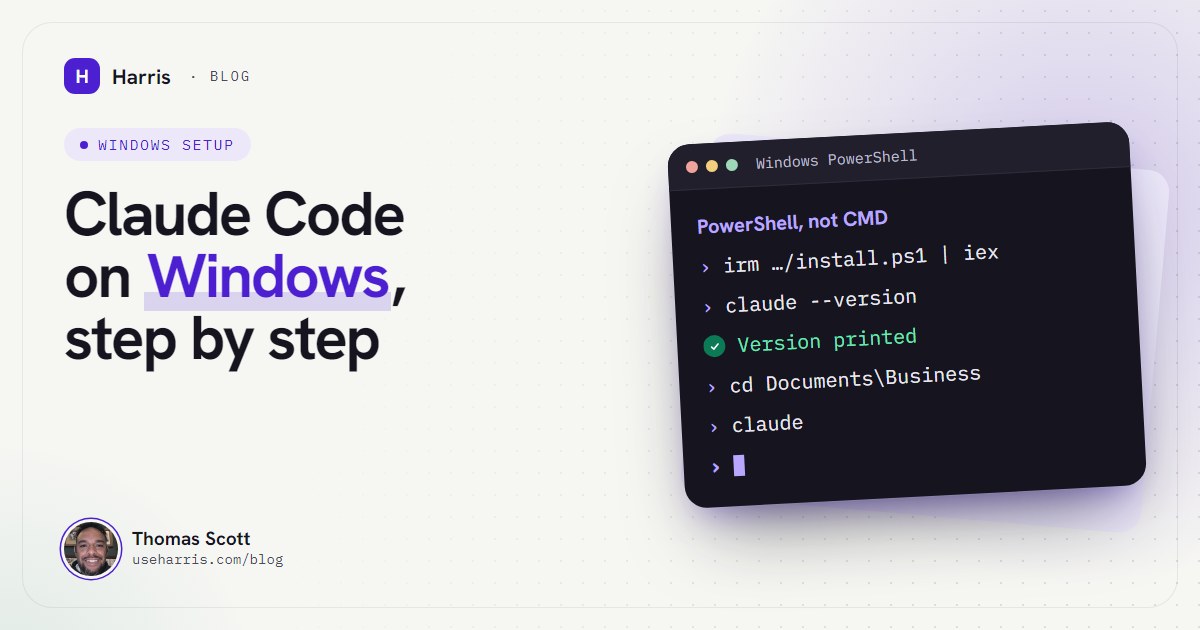
- Open Windows PowerShell. Press the Windows key, type
PowerShell, and pick Windows PowerShell. Not the one ending in (x86): that's the 32-bit version, and it triggers an error saying Claude Code doesn't support 32-bit Windows, even on a 64-bit PC. You'll know you're in PowerShell because the prompt starts withPS. - Run the installer. Paste this and press Enter:
irm https://claude.ai/install.ps1 | iex. It shows no progress while it downloads, so give it a minute. - Close the window and open a new one. The window you installed from still has the old list of places Windows looks for programs (your PATH), so it won't find
claudeyet. - Check it worked. Type
claude --version. A working install prints a version number. - Go to your business folder and start it.
cdinto the folder (more on which folder below), typeclaude, and follow the browser prompt to sign in with your Claude account.
PS> irm https://claude.ai/install.ps1 | iex (no progress shown while it downloads)── new window ── PS> claude --version 2.1.211 (Claude Code) PS> cd "$env:USERPROFILE\Documents\Business" PS> claude (your browser opens to sign in)
If the browser doesn't open on sign-in, the docs say to press c to copy the sign-in link and paste it into your browser yourself.
If you're in CMD rather than PowerShell (the prompt has no PS), the CMD version of the command is: curl -fsSL https://claude.ai/install.cmd -o install.cmd && install.cmd && del install.cmd. There's also a WinGet route, winget install Anthropic.ClaudeCode, but WinGet installs don't update themselves, so you'd have to remember winget upgrade Anthropic.ClaudeCode. The PowerShell install updates in the background, which is what I'd want for a tool I use every day.
For a fuller health check, claude doctor prints a read-only report of the install and your settings, with suggested fixes for anything wrong.
Do I need Git Bash for Claude Code on Windows?
This is where most older guides are now wrong. Git Bash used to be required. It isn't any more.
Anthropic's docs now describe Git for Windows as optional. Without it, Claude Code runs commands through PowerShell. With it, Claude Code also gets a Bash tool (Bash is the command language most Mac and Linux instructions are written in), plus a Monitor tool that needs it.
I install it anyway, for three reasons:
- Most instructions on the internet are Bash. When Claude Code works from a guide, a GitHub page or a script someone else wrote, Bash just runs it.
- PowerShell and Markdown don't mix well. PowerShell uses the backtick as its escape character, and Markdown uses backticks for code. When notes were written through PowerShell strings in my setup, backticks went missing. My vault rules now say to write notes with Claude's own file tools or Bash, never a PowerShell string.
- You get both. With Git installed, Claude Code has the Bash and PowerShell tools side by side and picks the right one for the job.
When you install Git for Windows, Anthropic's troubleshooting page says to select "Add to PATH" during setup and restart your terminal afterwards.
How do I fix the Claude Code git-bash path error?
If you've installed Git and Claude Code still can't find it, or you're on an older version, you'll see one of these:
Error: Claude Code on Windows requires git-bash (https://git-scm.com/downloads/win). If installed but not in PATH, set environment variable pointing to your bash.exe, similar to: CLAUDE_CODE_GIT_BASH_PATH=C:\Program Files\Git\bin\bash.execurrent versions say instead: Claude Code on Windows requires either Git for Windows (for bash) or PowerShell
If you see the newer message ("requires either Git for Windows or PowerShell"), Claude Code can't find PowerShell either, which is rare. The docs say PowerShell normally lives in C:\Windows\System32\WindowsPowerShell\v1.0\: add that folder to your PATH, or install PowerShell 7.
If you see the older "requires git-bash" message, first update Claude Code (run claude update, or rerun the installer), because current versions fall back to PowerShell instead of stopping. If Git is installed and you want Claude Code to use it, point Claude Code at it directly:
- Find Git. In PowerShell, run
where.exe git. It prints something likeC:\Program Files\Git\cmd\git.exe. The file you want is in the same Git folder, underbin:C:\Program Files\Git\bin\bash.exe. - Open your Claude Code settings file. It lives at
%USERPROFILE%\.claude\settings.json. Paste that path into File Explorer's address bar to find it. If it doesn't exist, create it in Notepad. - Add the path. In JSON (the format the file uses), every backslash is written twice. If the file is new, the whole file is:
{ "env": { "CLAUDE_CODE_GIT_BASH_PATH": "C:\\Program Files\\Git\\bin\\bash.exe" } }. If the file already has content, add theCLAUDE_CODE_GIT_BASH_PATHline inside its existingenvsection rather than creating a second one. - Close Claude Code and start it again from a new terminal window.
Watch outPoint it at bash.exe, not git-bash.exe. The docs say Claude Code only accepts a file named bash.exe, sh.exe, bash or sh. Given anything else, such as Git's git-bash.exe launcher, it ignores the setting and quietly falls back to searching for Git itself. On a work PC, security software can also block it; the docs suggest asking IT to allow claude.exe, cmd.exe and bash.exe.
Claude Code looks for Git in C:\Program Files\Git and C:\Program Files (x86)\Git first, then wherever the git command on your PATH lives. So if you installed Git with its default options, you shouldn't need any of this.
Where should I run Claude Code from?
From the folder that holds your CLAUDE.md, every time. This is the step that causes the most confusion I see, and nothing in the error messages will tell you you've got it wrong.
Claude Code loads its instructions from the folder you start it in (and the folders above it) and works on the files inside it. Start it in the wrong place and it boots without your instructions, as a blank assistant, and you'll wonder why it's forgotten everything.
My layout: a workshop folder holding CLAUDE.md and Claude's settings, with the Obsidian vault of notes inside it. I always start Claude Code from the workshop folder. The full structure is in my guide to an Obsidian second brain with Claude Code, and the boot file itself is in my CLAUDE.md template for business owners.
Three ways to open a terminal in the right folder:
- Windows 11: right-click the folder in File Explorer and choose Open in Terminal.
- Windows 10: hold Shift, right-click inside the folder, and choose Open PowerShell window here.
- Either: open the folder in File Explorer, click the address bar, type
powershelland press Enter.
Two folders not to start from: C:\Windows\System32, which is where an Administrator PowerShell opens by default, and your whole user folder. Claude Code works on what's inside the folder you start it in. Give it the business folder, not the entire PC.
What other errors do Windows users hit?
These are the ones from Anthropic's installation troubleshooting page that a non-developer is most likely to see:
| What you see | What it means | Fix |
|---|---|---|
'claude' is not recognized |
Windows doesn't know where Claude Code is | Open a new window first. Still failing: run the PATH fix below |
'irm' is not recognized |
You're in CMD, not PowerShell | Open PowerShell, or use the CMD command above |
The token '&&' is not a valid statement separator |
You're in PowerShell running the CMD command | Use irm https://claude.ai/install.ps1 | iex |
A parameter cannot be found that matches parameter name 'fsSL' |
You pasted the Mac or Linux command | Use the PowerShell command |
Claude Code does not support 32-bit Windows |
You opened Windows PowerShell (x86) | Open plain Windows PowerShell |
The process cannot access the file ... being used by another process |
A second installer or your antivirus has the download open | Close other PowerShell windows, wait, delete the downloads folder, rerun |
running scripts is disabled on this system |
You installed through npm and PowerShell blocked its launcher | Use the PowerShell installer instead of npm |
The PATH fix. The installer puts Claude Code at %USERPROFILE%\.local\bin\claude.exe. If that folder isn't on your PATH, the docs give two PowerShell lines that add it permanently for your user:
$currentPath = [Environment]::GetEnvironmentVariable('PATH', 'User')
[Environment]::SetEnvironmentVariable('PATH', "$currentPath;$env:USERPROFILE\.local\bin", 'User')
Then close the terminal, open a new one and try claude --version again. If you're using a terminal inside an editor, quit and reopen the editor too.
Should I use WSL or install natively on Windows?
WSL (Windows Subsystem for Linux) runs a Linux system inside Windows. Developers like it. For a business owner, I'd install natively. My own setup is native.
| Native Windows | WSL 2 | |
|---|---|---|
| Extra set-up | None (Git for Windows optional) | WSL 2 enabled, then a Linux install inside it |
| Works with your Windows files and apps | Directly | Through /mnt/c/ paths |
| Claude Code sandboxing | Not supported | Supported |
| Sign-in | Browser opens normally | Often needs a code pasted back in |
The one real argument for WSL 2 is sandboxing, which lets Claude Code run commands inside a fenced-off area. Native Windows doesn't support it. Be clear about what that means: on native Windows, Claude Code runs with your Windows permissions, and what protects you is its permission prompts, which ask before it runs commands or edits files. Don't run it on a shared Windows account or a PC you don't control.
Windows habits that saved me trouble
Nothing in the docs covers these. They're from two months of running a business through Claude Code on Windows.
- Write long instructions to a file, then point at it. Multi-line pastes into the terminal on Windows have been cut off silently in my setup, with no warning. Anything longer than a couple of lines now goes into a Markdown file in the workshop folder, and I type one line: "Read
build-brief.mdand follow it." - Open scripts, never
startthem. On Windows, telling the system to start a.shor.batfile runs it. An agent once meant to open a deploy script to read it and redeployed a live system instead. Scripts get opened in Notepad or an editor. That rule is now in my boot file. - Don't run Claude Code as Administrator. You don't need it to install, and an elevated session can change far more of the PC than a business folder needs.
- Keep the version current. The native install updates itself in the background. If something documented doesn't behave as described,
claude updateandclaude doctorare the first two things to run. Several errors in this guide only exist on older versions.
What to do once it's installed
Installing Claude Code takes about five minutes. Making it useful for a business takes longer, and that part isn't technical. Write a CLAUDE.md, make a folder for your notes, and start every session from the same place. Then give it one real job: the overdue quote, the inbox you keep avoiding, the report you rebuild by hand every month.
If you'd rather have that part done with you, on your own PC, that's what the install call is for.
Questions people ask
Does Claude Code work on Windows without WSL?
Yes. Anthropic supports a native Windows install on Windows 10 version 1809 or later and Windows 11, run from PowerShell or CMD. WSL is an option, mainly if you want Claude Code's sandboxing, which native Windows doesn't support.
Do I need Git Bash for Claude Code on Windows?
Not any more. Git for Windows is optional: without it, Claude Code runs commands through PowerShell. I still install it, because it enables the Bash tool and most scripts and instructions you'll find are written for Bash.
How do I fix the Claude Code git-bash path error?
Run where.exe git in PowerShell to find your Git install, then add CLAUDE_CODE_GIT_BASH_PATH pointing at its bin\bash.exe to the env section of your Claude Code settings.json, and restart Claude Code. Point it at bash.exe, not git-bash.exe.
Is Claude Code better on Mac or Windows?
Both are supported and the core work is the same. Native Windows lacks Claude Code's sandboxing and has a few more setup traps, which is what this guide covers. My own setup, and Harris, is Windows-only.
Do I need admin rights to install Claude Code?
No. Anthropic's docs say you don't need to run the installer as Administrator. It installs into your own user folder, which your account can already write to.